
Idle cloud resources are assets you're paying for but not using effectively - like VMs with low activity, unattached storage volumes, or unused IP addresses. These resources waste up to 30% of cloud budgets if left unchecked. Tracking and managing them can save thousands monthly, improve security, and align infrastructure with business needs.
Key Steps to Track Idle Resources:
- Tagging Resources: Use tags like
Owner,Project, andEnvironmentto identify and manage assets. - Monitoring Tools: Enable tools like AWS CloudWatch, Azure Monitor, or Google Cloud Monitoring to track usage and flag idle resources.
- Automation: Use workflows (e.g., AWS Lambda, Azure Logic Apps) to shut down or delete idle resources automatically.
- Regular Audits: Review recommendations from AWS Compute Optimizer, Azure Advisor, or GCP Recommender weekly.
Example Savings: Deleting 47 idle EC2 instances with 0.2% CPU usage saved a company £3,400 per month.
How To Identify Unused Cloud Resources For Cost Savings?
Setting Up Tools and Prerequisites
Before diving into resource optimisation, it's crucial to configure the right systems to identify idle resources effectively. These initial steps lay the groundwork for monitoring and automation strategies discussed later.
Configuring Cost Allocation Tags
Tagging is your first step towards better visibility. Without consistent tags, tracking spending back to specific teams, projects, or business units becomes a challenge. Key tags to implement include Owner (to identify the responsible person or team), Project (to link resources to initiatives), Environment (e.g., Dev, Staging, or Prod), and Business Unit (to allocate costs correctly) [8][10].
Consistent tagging makes it easy to trace spend to owners, projects, or business units and flag charges for inactive initiatives.- Juliana Costa Yereb, Senior FinOps Specialist, ProsperOps [10]
Start by creating a tagging dictionary that standardises tag keys and values [8]. Use governance tools like AWS Tag Policies, AWS Service Control Policies, or Azure Policy to enforce tagging during resource provisioning [8][9]. For instance, AWS Config can be set up to automatically flag or stop resources missing mandatory tags, such as an owner tag, after 48 hours [10]. This helps uncover orphaned
resources - assets left running after projects end or employees leave [10][11].
| Tag Category | Tag Keys | Purpose |
|---|---|---|
| Ownership |
Owner, Team, Contact
|
Identifies who is responsible for the resource and verifies its need. |
| Business Context |
Project, BusinessUnit
|
Links resources to initiatives and flags unused resources from closed projects. |
| Environment |
Env, Stage (e.g., Prod) |
Sets cleanup thresholds (e.g., stopping Dev resources on weekends). |
| Application |
AppID, Service
|
Associates resources with software services to check for activity. |
| Automation |
Schedule, OptOut
|
Guides automation scripts for resource start/stop schedules. |
Enabling Cloud Monitoring Services
Each cloud provider offers tools to monitor resource usage. On AWS, enable Amazon CloudWatch to track metrics like CPUUtilization. For memory monitoring, install the CloudWatch Agent [10]. AWS Compute Optimizer can also analyse 14 days of historical data to suggest resource rightsizing [10][2].
In Azure, use Azure Monitor to collect performance data and Azure Advisor to identify underused resources, such as idle disks or inactive Cosmos DB instances [9]. For Google Cloud, enable Cloud Monitoring for basic metrics and install the Ops Agent on Compute Engine VMs for detailed logs [12].
Set alerts for key thresholds, such as CPU usage below 10–15% for seven consecutive days [10]. Focus on metrics like ActiveConnectionCount for load balancers (zero indicates inactivity), Invocations for Lambda functions (no activity over 60–90 days), and BytesProcessed for NAT Gateways [10][2]. Use a 14-day lookback for compute resources and extend to 32 days for storage or network gateways to account for seasonal trends [2].
Preparing Command Line Access
Command-line tools are essential for running programmatic queries and audits, forming the backbone of automation efforts. For AWS, install AWS CLI v2 and configure IAM credentials using aws configure [14]. Ensure your IAM permissions include access to services like compute-optimizer, ce (Cost Explorer), and support for Trusted Advisor checks [14][15]. The Cost Optimization Hub can consolidate Compute Optimizer data with pricing discounts [2].
For Azure, install the Azure CLI or use Azure Cloud Shell. Authenticate with az login for interactive sessions or create a Service Principal using az ad sp create-for-rbac for automation [13]. Set your subscription context with az account set --subscription <subscription-id> to ensure commands target the right environment [13].
In Google Cloud, install the Google Cloud SDK, authenticate with gcloud auth login, and set your project using gcloud config set project <project-id>. Enable the Cloud Monitoring API (v3) and Recommender API in the Google Cloud Console to enable resource queries through the CLI [12].
For automation, use service accounts like Azure Service Principals or GCP Service Accounts with Viewer roles [13]. All three CLIs support --output json, making it easy to pipe idle resource data into scripts for further processing [13].
Tracking Idle Resources in AWS, Azure, and Google Cloud
::: @figure 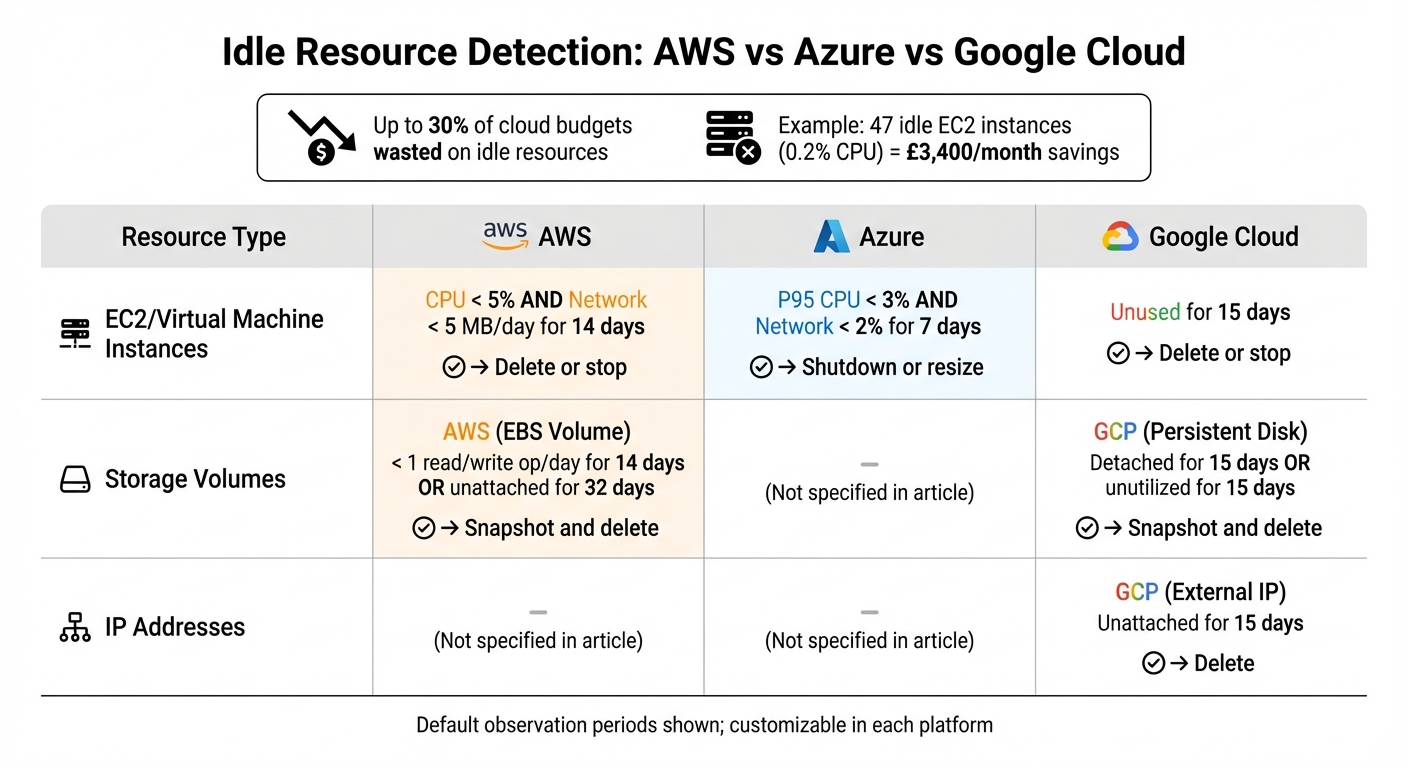 {Cloud Platform Idle Resource Detection Criteria and Actions Comparison}
:::
{Cloud Platform Idle Resource Detection Criteria and Actions Comparison}
:::
Cloud platforms offer built-in tools to help identify idle resources, making it easier to analyse usage patterns and cut down on unnecessary expenses.
AWS: Using Compute Optimizer
AWS Compute Optimizer helps detect idle resources across EC2 instances, EBS volumes, ECS services on Fargate, RDS instances, and NAT Gateways. It evaluates 14 days of CloudWatch metrics to determine if resources are idle, while EBS volumes and NAT Gateways are assessed over a 32-day period to account for attachment patterns [2][18].
AWS Compute Optimizer now supports recommendations to help you identify idle AWS resources... candidates for turning off or deleting, resulting in cost savings.– AWS [18]
To get started, log in to the AWS Management Console, navigate to Compute Optimizer, and select Get started
. The tool creates a service-linked role and begins its analysis. Within 24 hours, it classifies resources as Optimised
, Not optimised
, or Idle
. For example, an EC2 instance is tagged as idle if its CPU usage is under 5% and network I/O is below 5 MB per day over 14 days. Similarly, EBS volumes are flagged idle if they average fewer than one read/write operation per day over 14 days or remain unattached for 32 days [2].
For programmatic access, use the get-idle-recommendations CLI command [20]. To refine cost insights, enable the Cost Optimization Hub in AWS Cost Explorer, which combines Compute Optimizer data with pricing discounts from Savings Plans or Reserved Instances [2][19]. Before deleting idle EBS volumes, it’s a good idea to create a snapshot to safeguard your data [2][19].
Azure provides similar tools for identifying and managing idle resources.
Azure: Using Azure Advisor and Monitor
Azure Advisor works in tandem with Azure Monitor to identify idle virtual machines and Virtual Machine Scale Sets (VMSS). Metrics are sampled every 30 seconds and aggregated into 30-minute intervals, with resources flagged as idle if they show no activity over seven days and a P95 maximum CPU utilisation below 3% [17].
Azure Advisor helps you optimise and reduce your overall Azure spend by identifying idle and underutilised resources.– Microsoft [17]
To check for idle resources, log in to the Azure portal and search for Advisor. In the dashboard's Cost tab, you can view underutilised resources and adjust the lookback period (default is seven days, but it can be extended to 90 days) and CPU thresholds. For workloads with low average usage but occasional spikes, resizing to Burstable (B-series) SKUs might be recommended. For VMSS, reducing instance counts is often a quicker way to achieve savings.
Google Cloud also provides tools with comparable functionality to track and manage idle resources.
Google Cloud: Using Recommender and Operations Suite
Google Cloud's Recommender identifies idle VM instances, Persistent Disk volumes, external IP addresses, and custom disk images. The Operations Suite complements this by offering detailed utilisation metrics [1][16].
Compute Engine helps you identify idle Persistent Disk volumes, IP addresses, and custom disk images, and provides recommendations to help you minimise waste.– Google Cloud [16]
Resources are flagged as idle if they remain unused for 15 days. For example, deleting an idle external IP address immediately eliminates its cost [16]. To view recommendations, go to the All recommendations
page in the Google Cloud console and look under Unused Compute Engine resources
. Alternatively, use the gcloud recommender recommendations list CLI command with specific RECOMMENDER_ID flags for disks, images, or IP addresses [16]. Recommendations update every 24 hours. Before deleting idle Persistent Disks, check the isBlank insight. If it’s false, create a snapshot to prevent data loss. Deleting these disks after snapshotting can cut maintenance costs by 35% to 92% [16]. The observation period defaults to 14 days but can be adjusted between 1 and 14 days to better align with your workload’s behaviour [4].
| Resource Type | Platform | Idle Criteria (Default) | Recommended Action |
|---|---|---|---|
| EC2 Instance | AWS | CPU < 5% and Network < 5 MB/day (14 days) | Delete or stop |
| EBS Volume | AWS | < 1 read/write op/day (14 days) or unattached (32 days) | Snapshot and delete |
| Virtual Machine | Azure | P95 CPU < 3% and Network < 2% (7 days) | Shutdown or resize |
| Persistent Disk | GCP | Detached for 15 days or unutilised (15 days) | Snapshot and delete |
| External IP | GCP | Unattached for 15 days | Delete |
Need help optimizing your cloud costs?
Get expert advice on how to reduce your cloud expenses without sacrificing performance.
Automating Idle Resource Tracking
Expanding on earlier advice for manual monitoring, automation takes idle resource detection and management to the next level. As cloud portfolios grow, relying on manual audits becomes impractical. Automation ensures continuous oversight, eliminating the need for tedious spreadsheet reviews or random checks. Fortunately, major cloud providers offer built-in tools to create workflows that automatically identify and handle idle resources.
Implementing Rule-Based Automation
Set up workflows that trigger actions based on specific thresholds. For instance, AWS Lambda can be paired with CloudWatch Events to automatically stop EC2 instances when CPU usage falls below 5% and network activity stays under 5 MB per day for 14 consecutive days [2]. Similarly, Azure Logic Apps and Azure Automation allow you to schedule shutdowns for non-production environments outside of business hours [5]. On Google Cloud, the Recommender API provides programmatic suggestions for idle resources, which you can use with the gcloud CLI or REST API to automate the stopping of virtual machines or deletion of unattached disks [3].
By identifying and shutting down our idle resources, we managed to reduce their cloud costs by nearly 30%.– Steven Moore, FinOps Specialist [6]
For storage resources, automate snapshot creation before deletion to safeguard critical data. It’s also wise to target automation efforts at specific resource types rather than entire accounts, reducing unnecessary function calls and configuration costs [21]. A tiered approach works best: start by notifying teams via channels like SNS or Slack, then move to stopping or snapshotting resources, and finally delete them after a waiting period. This layered strategy complements periodic manual reviews.
Scheduling Regular Audits
While automation handles real-time adjustments, regular audits help catch anything that might slip through the cracks. Tools like AWS Compute Optimizer and GCP Recommender refresh their recommendations daily, based on 14-day activity windows [2][3]. Dedicate just 30 minutes each week to review tools like AWS Trusted Advisor or Azure Advisor for unused volumes, idle IP addresses, and outdated snapshots [5]. Shutting down development environments outside standard working hours (9–5 on weekdays) can cut monthly costs by as much as 35% without affecting productivity [5]. Additionally, set lifecycle policies to move rarely accessed data to cheaper storage tiers or delete old snapshots after 30–90 days [5].
Multi-Cloud Monitoring Tools
For organisations using multiple cloud platforms, unified monitoring tools help close visibility gaps. Switching between AWS, Azure, and Google Cloud consoles can be cumbersome, so consider tools like Cloud Custodian, an open-source solution that uses a YAML-based rules engine to enforce policies for cost management and cleanup across all three providers [22]. Similarly, Google Cloud Monitoring supports hybrid and multi-cloud setups, consolidating metrics into a single dashboard [12]. These tools simplify off-hours job scheduling and resource cleanup across accounts and regions [22]. If your team lacks the expertise to configure these workflows, companies like Hokstad Consulting specialise in setting up automated tracking and cost-optimisation strategies tailored to your specific infrastructure.
Conclusion
Summary of Tools and Steps
Keeping track of idle cloud resources doesn’t require anything beyond the tools already provided by cloud platforms. Services like AWS Trusted Advisor, Azure Advisor, and Google Cloud Recommender offer built-in recommendations at no extra cost. These tools can identify unattached volumes, idle IP addresses, and underused instances within a timeframe of 14 to 32 days [2][3]. Combine these with automation tools - such as AWS Lambda for scheduled shutdowns or Azure Logic Apps for managing lifecycle policies - and you can turn manual audits into a seamless, automated process [6][23]. The result? A more efficient approach that translates into direct cost savings and operational improvements.
Benefits of Regular Monitoring
Using these tools and automation strategies brings immediate financial and operational advantages. Regular monitoring prevents the build-up of idle, unsecured servers - resources that not only waste money but also pose security risks by running outdated software [7]. On top of that, the potential financial impact is substantial. It’s estimated that around 30% of cloud spending is wasted on unused resources [5]. For example, in December 2025, a mid-sized tech company identified 47 idle EC2 instances, each with an average CPU usage of just 0.2%. By terminating these ghost instances
, they saved £3,400 every month [5]. Over time, consistent monitoring ensures these savings continue to grow, all while maintaining robust security and operational efficiency.
How Hokstad Consulting Can Help

If your team doesn’t have the time or expertise to set up automated tracking workflows, Hokstad Consulting can step in. They specialise in cloud cost engineering and DevOps transformation, helping businesses implement the strategies discussed above. Their services include configuring rule-based automation, deploying multi-cloud monitoring tools, and establishing tagging policies to ensure every resource is properly attributed to a team or project. With their No Savings, No Fee
model, you only pay a percentage of the savings achieved - making cost optimisation risk-free and accessible. Whether you need a one-time cloud cost audit or ongoing support for infrastructure monitoring, Hokstad Consulting provides tailored solutions for your specific setup, whether it’s public, private, hybrid, or managed hosting.
FAQs
How does tagging help identify and manage idle cloud resources?
Tagging offers a smart way to keep your cloud resources organised and easy to manage by attaching metadata (key-value pairs) to each asset. By using consistent tags like Environment (e.g., dev, test, prod), Owner, Project, or a custom tag like UtilisationStatus (e.g., active or idle), you can quickly identify and filter resources that may be underused or unnecessary.
Adding tags right when resources are created ensures every asset is properly labelled from the beginning. These tags can then work seamlessly with cost management tools, helping you spot idle resources and cut down on waste. To make things even easier, you can automate regular scans to compare tagged resources with actual usage data. This allows for quick decisions, like shutting down or decommissioning assets that are no longer needed. With this approach, your cloud setup stays efficient and helps you manage costs effectively.
Which tools can help monitor and identify idle cloud resources in AWS, Azure, and Google Cloud?
To keep an eye on idle cloud resources, major cloud providers offer built-in tools that can make the task much easier:
- AWS Compute Optimizer: This tool provides suggestions for identifying underused instances, helping you spot and address idle resources effectively.
- Azure Monitor: Paired with Metrics Explorer, it allows you to monitor resource usage and pinpoint areas of inefficiency.
- Google Cloud Recommender: When used alongside Cloud Monitoring, it identifies idle virtual machines and other underutilised resources.
These tools are designed to streamline your cloud management by highlighting inefficiencies, ultimately helping you cut down on unnecessary costs.
What are the advantages of automating the management of idle cloud resources?
Automating the management of idle cloud resources brings some clear advantages. First and foremost, it helps cut down on unnecessary expenses by pinpointing and shutting off unused resources. This way, your budget goes towards what genuinely matters. On top of that, it frees up space for other workloads, ensuring smoother performance and better resource distribution across your systems.
Another big plus is the boost to security. By removing forgotten or unmonitored resources, you minimise potential vulnerabilities that could expose your infrastructure to risks. And let’s not forget the environmental angle - using resources more efficiently means consuming less energy, which translates to a smaller carbon footprint. Automating these tasks doesn’t just save time; it ensures your cloud setup runs as effectively as possible.