
I recommend a read-only SharePoint connector that checks access before any content reaches your AI agent. Start with signed-in user access for user-facing tasks, limit retrieval to approved repositories, and return passages with source links - not permission decisions made by the model.
My setup checklist covers five steps:
- Define the boundaries: approve sites, libraries, users and file types, with UK data-handling rules for test content.
- Register and grant access: choose delegated or application access, use the narrowest Graph permissions, and protect credentials. Selected permissions also need explicit resource grants.
- Retrieve and cite: validate each file, extract supported text, attach source details and recheck access to cached passages.
- Test the results: check denied and revoked access, errors, answer accuracy, citations and latency. My release target is zero disclosures outside permitted access.
- Approve deployment: name owners for alerts, access reviews and rollback, then obtain business, SharePoint and security approval.
The rule I keep front and centre: document text is source material, not instructions. Writes stay outside this connector, and a proposed spending alert at 110% of budget is a monitoring threshold - not a measured result.
::: @figure 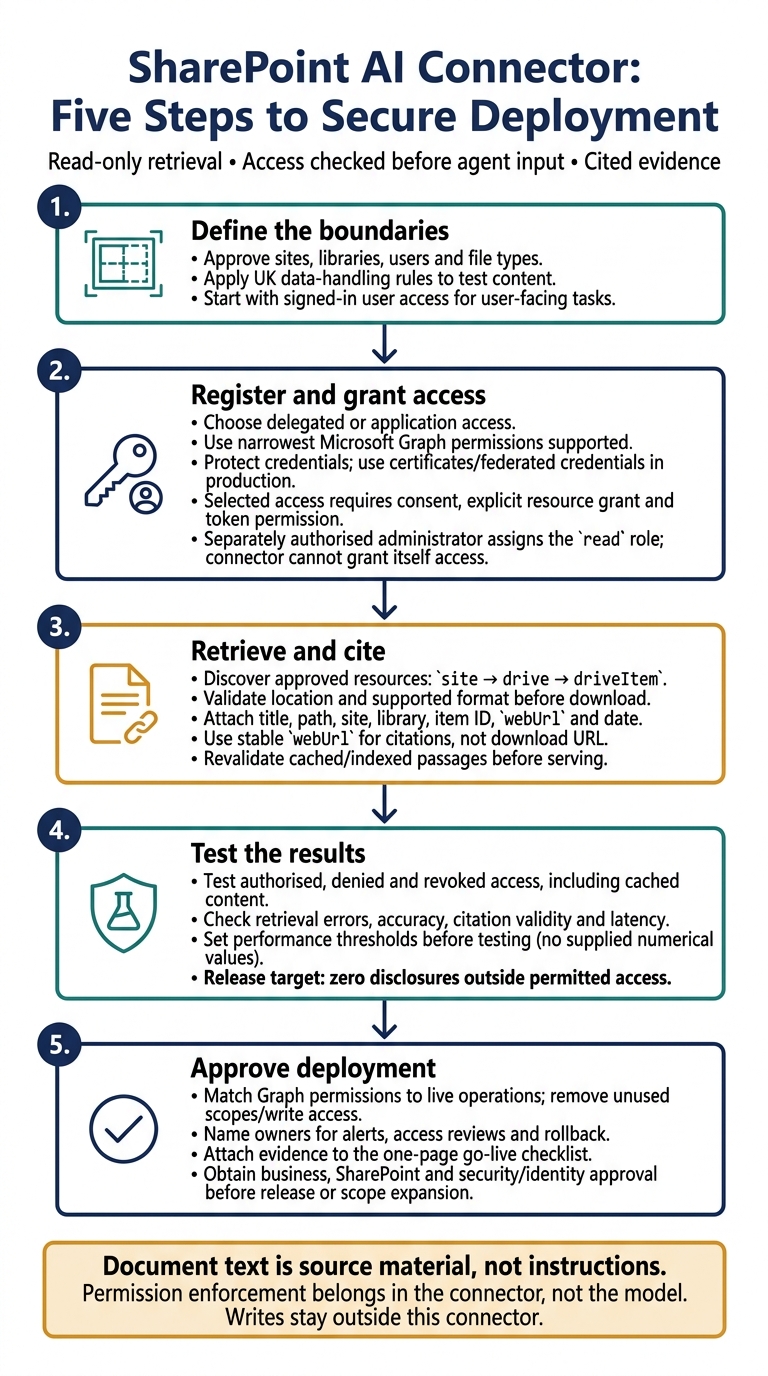 {SharePoint AI Connector: Five Steps to Secure Deployment}
:::
{SharePoint AI Connector: Five Steps to Secure Deployment}
:::
2. Register the Application and Approve Access
With the access model agreed, register the connector app in Microsoft Entra admin centre. Go to App registrations → New registration, enter the application name, select the account type and choose Register. Single-tenant registration is standard for internal connectors.
Save the Directory (tenant) ID and Application (client) ID in approved configuration. Use TENANT_ID and CLIENT_ID in documentation and testing, and record the environment, business owner and data classification.[7] Use this registration for the read-only retrieval path defined above.
Configure Authentication
For delegated access, configure sign-in and the redirect URI. Keep credentials in protected storage, and never expose them in logs.
For application access, request a token through the client-credentials flow using https://graph.microsoft.com/.default. This requests the Graph application permissions already configured and consented for the app. It does not select permissions at runtime.[11][13]
Use client secrets only for development. In production, use certificates or federated credentials, and keep all secrets outside source code. Monitor credential expiry and rotate credentials before they expire. Treat managed identities as service principals: assign Graph permissions and SharePoint grants to the identity itself.[7][8][9]
Once authentication is set up, add only the Graph permissions needed for repository discovery and document retrieval.
Choose Microsoft Graph Read Permissions
Go to API permissions → Add a permission → Microsoft Graph. Choose Delegated permissions or Application permissions to match the authentication model.
Check the permission requirements for every endpoint used, including discovery, listing and content download. Choose the narrowest permission set that covers the endpoints in scope.[4][5][12]
| Permission | Availability | Resource scope | Required grants | Suitable use |
|---|---|---|---|---|
Files.Read |
Delegated | Signed-in user’s files | User sign-in and consent permitted by tenant policy | User-session file retrieval where the endpoint supports it |
Files.Read.All |
Delegated and application | All files the user or application can access; potentially tenant-wide for application access | Consent; administrator consent for application access | Broad file retrieval with explicit approval |
Sites.Read.All |
Delegated and application | SharePoint sites and content; broad application scope | Administrator consent | Approved broad site discovery and retrieval |
Sites.Selected |
Delegated and application | Assigned site collections | Administrator consent plus site-specific grants | Background retrieval restricted to approved sites |
Files.SelectedOperations.Selected |
Delegated and application, subject to endpoint support | Assigned files or document-library folders | Consent plus resource-specific grants | Retrieval restricted below site level |
Restrict the chosen permissions to approved sites or files before testing.
Grant Consent and Resource Access
Before granting consent, record each permission’s purpose, access type, approver, approval date, target resources and review date. Check tenant registration restrictions, user-consent settings and any applicable Conditional Access or workload-identity policies.
Selected access needs consent, an explicit resource grant and the relevant token permission. Follow Microsoft’s selected-permissions model: Sites.Selected grants apply to site collections, while Files.SelectedOperations.Selected targets supported files or library folders.
Have a separately authorised administrator assign the read role. Do not give the retrieval connector permission to grant itself access. Test both an assigned resource and an unassigned resource, followed by invalid credentials and revoked access. Record HTTP outcomes and correlation IDs.[5][10]
3. Retrieve Documents and Keep Source Citations
Find Sites, Libraries and Files
Once access is approved, find the target site, then work down to the library and file.
Microsoft Graph represents SharePoint as site → drive → driveItem. A site is the SharePoint site, a drive is usually a document library, and a driveItem is a file or folder. Confirm approved permissions before discovery. If access is scoped, query only administrator-approved IDs.[3][6]
# Resolve the site by hostname and site path.
GET https://graph.microsoft.com/v1.0/sites/{SHAREPOINT_HOSTNAME}:/{SITE_PATH}
Authorization: Bearer {GRAPH_ACCESS_TOKEN}

# List the site's document libraries.
GET https://graph.microsoft.com/v1.0/sites/{SITE_ID}/drives
Authorization: Bearer {GRAPH_ACCESS_TOKEN}

# List a folder's immediate children.
GET https://graph.microsoft.com/v1.0/drives/{DRIVE_ID}/items/{FOLDER_ID}/children
Authorization: Bearer {GRAPH_ACCESS_TOKEN}

# Retrieve one item's metadata, not its file bytes.
GET https://graph.microsoft.com/v1.0/drives/{DRIVE_ID}/items/{ITEM_ID}
Authorization: Bearer {GRAPH_ACCESS_TOKEN}

# Retrieve sharing-permission information separately.
GET https://graph.microsoft.com/v1.0/drives/{DRIVE_ID}/items/{ITEM_ID}/permissions
Authorization: Bearer {GRAPH_ACCESS_TOKEN}

# Download only after validating location and format.
GET https://graph.microsoft.com/v1.0/drives/{DRIVE_ID}/items/{ITEM_ID}/content
Authorization: Bearer {GRAPH_ACCESS_TOKEN}
Keep id, name, webUrl and lastModifiedDateTime. Check the file or folder facet before downloading. The content endpoint commonly returns 302 Found with a pre-authenticated download URL. Follow that URL through a trusted HTTP client, but keep it out of logs and agent input. Use the stable webUrl for citations.
Choose Direct Retrieval or Scoped Search
Use folder search only if the permission model supports it, and URL-encode the query.[14][15]
GET https://graph.microsoft.com/v1.0/drives/{DRIVE_ID}/items/{FOLDER_ID}/search(q='{URL_ENCODED_QUERY}')
Authorization: Bearer {GRAPH_ACCESS_TOKEN}
Choose the retrieval path based on what the business needs: a known document, a bounded set of folders, or discovery search.
| Method | Discovery | Precision | Permission check | Agent task |
|---|---|---|---|---|
| Path retrieval | Known site and path | High when paths are stable | Must permit access to the target site and item | Fetch a configured policy |
| Known-item retrieval | Known drive and item IDs | Very high | Graph evaluates access to the item | Update cited evidence |
| Folder enumeration | Immediate children | Medium; the connector must filter results | Requires access to the folder and its contents | Build a controlled catalogue |
| Scoped search | Query matches | Variable | Depends on the endpoint and granted scopes | Find relevant documents |
Use known IDs for predictable production workflows and enumeration for bounded folders. Use search for discovery only where the selected permissions and endpoint support it. Search hits are candidates, not approved sources, until they pass location, format and date checks.
Follow @odata.nextLink until you reach the configured result limit, and deduplicate item IDs. For 429 responses, honour Retry-After, with bounded retries and exponential back-off when needed.
Extract Content and Enforce Access
After identifying the item, extract only authorised text. Attach the citation fields needed for audits and to ground answers in the source.
Check each item's site, library and path against the allow-list. Extract supported formats only, and record failures for unsupported, encrypted or corrupted files. Attach the title, path, site, library, item ID, webUrl and modified date to each passage. Add page or section references where available. Require citations in answers; if no authorised evidence supports an answer, say so.
Revalidate cached or indexed passages before serving them. Include tenant, site, drive and item IDs in cache keys, and purge entries when access changes. Delta tracking is not an ACL history: unchanged content can still lose its access authorisation.
4. Test Business Results and Production Controls
Test Identity and Access Boundaries
Use a non-production SharePoint library to test representative employee, HR and finance identities. Check authorised, denied and revoked access, including access to cached content.
Mark test files “Hypothetical”. Include an internal policy, restricted HR content, group-limited finance content, a superseded policy and a misleadingly named file. Record the identity, access mode, resource grants and test time, using this date and time format:
12/10/2026, 13:58 BST
| Business scenario | Expected result | Permission boundary | Returned evidence to record | Pass/fail criteria |
|---|---|---|---|---|
| Employee requests the internal policy | Authorised policy is available | Delegated user access and app scopes | Item ID, citation and request status | Pass only if the evidence supports the answer |
| Employee requests restricted HR material | No restricted content is disclosed | HR-only access | Status and refusal; no restricted snippets | Any disclosure fails |
| Finance member and non-member request the same finance document | Only the member receives it | Finance group membership | Result for each identity | Non-member receives no protected evidence |
| Application requests a resource after revocation | Access fails | Application permissions and resource grants | Resource ID and request outcome | Revoked access does not succeed |
| User opens a search hit | Source opens only when authorised | Current access to the item | Search result ID and open/download outcome | A search hit alone does not count as success |
Repeat these checks after membership, permission or assignment changes. Test cached and indexed material as well as newly retrieved content. This checks whether identity, group membership and revocation controls hold under production-like conditions.
Test Retrieval Errors and Agent Answers
Use the superseded policy and misleadingly named file to check that answers follow the content, not the filenames. Then simulate throttling, transient errors, missing files and retrieval failures. Check how the agent handles unsupported responses and safe refusals.
Set thresholds for retrieval accuracy, citation validity and end-to-end p95 latency before testing. Measure accuracy against a reviewed set of expected documents. Check that each citation supports the answer and opens for the intended user.
Require zero disclosure outside permitted access. The agent must not silently merge conflicting policies. For each completed task, record the Graph request outcome and any retries.
Report costs in pounds sterling. Treat the following as a proposed alert, not a measured result:
spend above 110% of budget
Monitor Access and Maintain the Connector
Monitor Microsoft Graph request outcomes, resource-grant changes, permission failures, latency and throttling. Assign owners for alerts and access reviews. Rotate credentials where required, remove out-of-scope repositories and keep logs safe for security and operational review.
Use these signals to assess whether the connector is ready for deployment.
5. Check Readiness for Deployment
After testing and monitoring, use this final release gate to check that the connector is ready for production.
Keep a one-page go-live checklist and attach evidence to each item. Record the approved access model and allow-listed sites or libraries. Check the production tenant ID, client ID, application owner and credential-rotation plan.
Match every Microsoft Graph permission to a live connector operation. Remove unused scopes and all write access. For Sites.Selected, check that you have administrator consent and an explicit read-only grant for each approved site.[2]
Attach retrieval evidence and confirm that the required source fields are present. Rather than repeating test evidence, link to the completed boundary tests and the business owner’s answer review in the release record.
Make sure production alerts have named owners and that access revocation and rollback procedures are ready. Record approval from the business, SharePoint and security/identity approvers before release or any scope expansion.
FAQs
How can I enforce user access with application permissions?
Centralise authorisation logic in a Policy Decision Point instead of relying on static roles. Register your AI agent with its own identity, specific client IDs and scoped permissions to avoid the risks of shared tokens.
Use a Policy Enforcement Point to check each request in real time. Before granting access, check the user’s location, the sensitivity of the data and their multi-factor authentication status. Apply least privilege: give the agent only the permissions it needs for its tasks.
How quickly should revoked access invalidate cached content?
Invalidate cached content promptly without sacrificing performance. If you cache token validation results, keep them for only a short time - for example, around 60 seconds. This lets you enforce revoked access within about a minute.
When needed, use real-time revocation checks, such as token introspection or revocation-list validation [1].
How do I test for prompt injection in SharePoint documents?
Treat document content as untrusted input. Test agents in isolated sandboxes using least-privilege credentials. Use synthetic datasets that include edge cases and exploit scenarios to check access controls and validation. Validate inputs and schemas before making enterprise API tool calls.
Use shadow mode to log decisions without enforcing them, then refine responses before moving to production. Keep logs and monitor activity to detect unexpected access patterns or misuse of agent authority.