
If I want a free cloud cost audit tool, I’d start with the native option for my main cloud, then add a second tool only if there’s a clear gap. For most teams, the choice comes down to three types of “free”: built-in provider tools, self-hosted open-source tools, and limited free plans.
In this list, I’m looking at 9 tools across AWS, Azure, GCP, Kubernetes, Terraform, and multi-cloud setups. The main things I’d check are:
- Cloud coverage: single cloud, multi-cloud, or Kubernetes only
- Audit use: spend visibility, tag checks, idle resource spotting, budgets, or policy rules
- Data access: exports, SQL queries, APIs, or BI feeds
- Limits and costs: free tiers, self-hosting work, and usage charges such as AWS Cost Explorer API calls at £0.01 per request and storage/query fees for exports
- Fit by team: startup, SaaS platform team, DevOps, or enterprise IT
The short version is simple:
- AWS Cost Explorer fits AWS-only teams and includes 13 months of history
- Microsoft Cost Management fits Azure-led teams and also supports AWS
- Google Cloud Billing Reports fits GCP teams and can export billing data to BigQuery
- Infracost fits Terraform teams that want cost checks in pull requests
- OpenCost and Kubecost fit Kubernetes teams that need pod or workload allocation
- Cloud Custodian fits teams that want policy rules and automated clean-up
- Steampipe and CloudQuery fit teams that want SQL-style audits, exports, and custom reporting
If I had to reduce the article to one decision rule, it would be this: use native tools for basic billing checks, and use open-source tools when you need multi-cloud views, Kubernetes allocation, policy controls, or your own reporting layer.
::: @figure 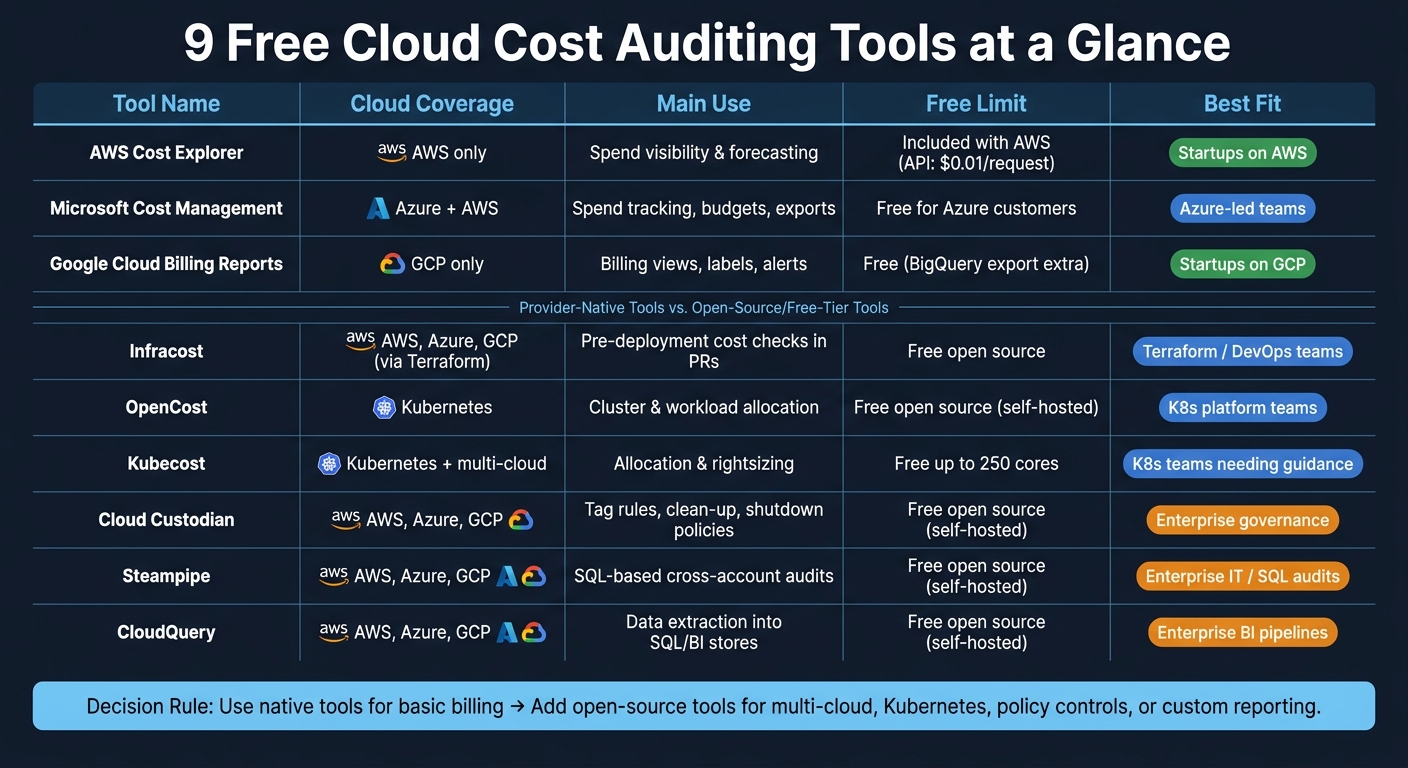 {9 Free Cloud Cost Auditing Tools: Quick Comparison Guide}
:::
{9 Free Cloud Cost Auditing Tools: Quick Comparison Guide}
:::
Cut your cloud costs doing this!
Quick Comparison
| Tool | Best for | Coverage | Main use | Main limit |
|---|---|---|---|---|
| AWS Cost Explorer | AWS startups | AWS | Spend visibility, forecasting, rightsizing | AWS-only, delayed data |
| Microsoft Cost Management | Azure-led teams | Azure, AWS | Spend tracking, budgets, exports | No GCP or OCI |
| Google Cloud Billing Reports | GCP startups | GCP | Billing views, labels, alerts | No direct idle-resource view |
| Infracost | Terraform teams | AWS, Azure, GCP | Pre-deployment cost checks | IaC-focused, not live billing |
| OpenCost | K8s platform teams | Kubernetes | Cluster and workload allocation | Self-hosted, K8s-only |
| Kubecost | K8s teams needing more guidance | Kubernetes / multi-cloud backing | Allocation, rightsizing | Free tier limits |
| Cloud Custodian | Enterprise governance | AWS, Azure, GCP | Tag rules, clean-up, shutdown policies | No billing dashboard |
| Steampipe | SQL-based audits | AWS, Azure, GCP | Cross-account queries and tag checks | Self-hosted |
| CloudQuery | BI and reporting pipelines | AWS, Azure, GCP | Data extraction into SQL stores | Self-hosted |
My takeaway: if I’m on one cloud, I’d keep it simple. If I’m split across clouds, running Kubernetes, or need custom exports, I’d add a second tool that solves that one missing piece.
What to Look for in a Free Cloud Cost Auditing Tool
Free tools don’t all do the same job. Some give you a decent top-line view of spend. Others help you spot waste, fix tagging gaps and move data into your own reports.
Before you choose one, check what matters most for your setup. The main things to compare are audit depth, export options and free-plan limits.
Cost visibility across accounts, subscriptions and projects
Start with spend visibility across accounts, subscriptions or projects. A monthly total on its own doesn’t tell you much.
Look for tools that break spend down by service, team, environment and time period. That level of detail makes it much easier to see where money is going and which part of the business is driving it.
Tagging and label checks
Good tagging is what turns cloud spend from a messy bill into something you can act on.
Look for tools that surface untagged resources and flag missing or inconsistent labels. That helps you see how much spend is actually allocated and how much is still sitting in a grey area.
Idle and underused resource detection
This is where a tool starts to save time instead of adding work.
Prioritise tools that flag idle and underused resources automatically, rather than leaving you to dig through long resource lists by hand. If a tool can point straight to unused instances, oversized databases or stale storage, that’s a big help.
Budgets, alerts and anomaly signals
You don’t want to find overspend at the end of the month when the bill lands.
Look for budget thresholds and anomaly alerts that warn you early. Even basic signals can help teams catch spikes before month-end and step in while there’s still time to act.
Exports, APIs and query access
Raw data access is often the line between a handy tool and a frustrating one.
CSV exports and APIs let teams move cost data into their own reporting systems, dashboards or finance workflows. Note: the AWS Cost Explorer API costs £0.01 per request.
Free-plan limits and hidden costs
“Free” can still come with strings attached. Some tools cap retention, usage or spend. Open-source options may skip licence fees, but you still need to cover hosting and maintenance time.
AWS Cost Explorer, for example, holds 13 months of data by default. It’s worth checking these limits against your actual setup before you commit to a tool.
Quick Comparison of the 9 Free Cloud Cost Auditing Tools
These nine tools fall into two camps: provider-native tools and self-managed open-source or free-tier tools. The native options are the fastest way to get started. The self-managed options give you more room to shape things around your stack. The notes below show where each group tends to fit in day-to-day use.
| Tool | Coverage | Main use | Free limit | Best fit |
|---|---|---|---|---|
| AWS Cost Explorer | AWS | Visibility & forecasting | Included with AWS | Startups (AWS) |
| Microsoft Cost Management | Azure, AWS | Visibility & forecasting | Free for Azure | Startups (Azure-centric) |
| Google Cloud Billing Reports | GCP | Visibility & forecasting | Free | Startups (GCP-centric) |
| Infracost | Multi-cloud | IaC cost estimates | Free open source | SaaS / DevOps |
| OpenCost | Kubernetes | K8s cost allocation | Free open source | SaaS (K8s teams) |
| Kubecost | Kubernetes | K8s cost allocation | Free up to 250 cores | SaaS (K8s teams) |
| Cloud Custodian | Multi-cloud | Governance & policy | Free open source | Enterprise IT |
| Steampipe | Multi-cloud | SQL-based auditing | Free open source | Enterprise IT |
| CloudQuery | Multi-cloud | Data integration | Free open source | Enterprise IT |
Provider-native tools
AWS Cost Explorer, Microsoft Cost Management, and Google Cloud Billing Reports sit inside their own cloud setups. That means no extra install, no hosting, and less friction at the start. AWS Cost Explorer and Google Cloud Billing Reports stay within their own platforms, while Microsoft Cost Management also covers Azure and AWS.
Start here if you want a quick view of spend by service, tag checks, and basic budget alerts. For many teams, this is the simplest first step.
Open-source and free-tier tools
The other six tools - Infracost, OpenCost, Kubecost, Cloud Custodian, Steampipe, and CloudQuery - are self-managed. Each one does a different job. Infracost estimates Terraform spend. OpenCost and Kubecost split Kubernetes costs. Cloud Custodian applies policy rules. Steampipe queries cloud APIs. CloudQuery loads data into systems you can use for reporting.
These tools make more sense for teams that need multi-cloud coverage and are happy to run and maintain the setup themselves. The tool-by-tool breakdown below shows which option suits each team type best.
1. AWS Cost Explorer
AWS Cost Explorer is AWS’s own tool for seeing where your cloud spend is going, how to split that spend across teams or workloads, and what costs may look like later on. It’s free to use in the AWS console. One catch: after you switch it on, your data may take up to 24 hours to show up.
Cost visibility and allocation checks
Cost Explorer lets you break spend down by service, region, account and tag across up to 13 months of historical data. That makes it a solid starting point if you want to answer a basic but important question: where is the money going?
There’s one thing to watch with tag-based allocation. It only works after you activate cost-allocation tags. If your tagging setup is messy, the reporting will be too. Using daily granularity helps you spot spend spikes sooner instead of waiting for a monthly bill shock.
Once you can see the baseline, you can start looking for waste.
Idle-resource and optimisation insights
Cost Explorer comes with built-in reports for unused EC2 instances, along with Reserved Instance and Savings Plans usage and coverage. It also gives rightsizing suggestions based on CPU, memory and network usage.
That said, it has a clear limit: reporting lag. Data can take 24–48 hours to appear, so it’s not a good fit for real-time anomaly detection. If you need alerts the moment spend jumps, this tool won’t get you there on its own.
Free-plan boundaries and export options
Standard console use is free. API requests cost $0.01 each. CUR exports are free, but you’ll still pay for S3 storage.
| Feature | Capability | Limit |
|---|---|---|
| Cloud coverage | AWS-only | No multi-cloud or hybrid support |
| Data latency | Up to 24–48 hours | Not suited to real-time monitoring |
| Idle detection | Unused EC2, rightsizing recommendations | Basic; no real-time monitoring |
| Tag allocation | Service, account, region and tag | Cost-allocation tags must be activated first |
| API access | API access | $0.01 per API request |
It works best for AWS-only teams that want a free starting point before they move into broader multi-cloud auditing.
2. Microsoft Cost Management
Microsoft Cost Management is Azure’s built-in tool for tracking and managing cloud spend. If you’re already in Azure, that matters straight away: it’s free for Azure customers.
Cloud coverage
The tool covers Azure subscriptions, management groups, and resource groups. It also connects to AWS, so teams running workloads across both clouds can pull spend data into one dashboard. GCP and OCI are unsupported.
That makes it a solid first stop for Azure-led teams that still need some AWS visibility without jumping between platforms all day.
Cost visibility and allocation checks
Microsoft Cost Management gives Azure-first teams clear spend allocation and some AWS coverage in one place. For audit work, the main value is allocation clarity.
You can break costs down by resource group, service, location, or tag. That makes it much easier to answer basic but important questions: where is the money going, who owns it, and does the billing line up with what was deployed?
Tag inheritance helps fill in missing context by carrying metadata from subscriptions down to individual resources. So if tagging is patchy, you still have a better shot at clean cost allocation. FOCUS support also standardises cost data across clouds, which helps when finance teams want one format instead of a mess of cloud-specific labels.
Idle-resource and optimisation insights
Azure Advisor helps turn spend review into action by flagging idle assets you can remove or resize. It uses a seven-day lookback and covers unused disks, inactive Cosmos DB instances, and underutilised Virtual Machine Scale Sets. Azure Advisor flags idle VMs using a seven-day lookback.
That seven-day window is useful, but it also means context matters. A quiet workload is not always a wasted one. Azure Monitor helps separate true idle use from short-term lulls, so teams don’t cut something they still need.
For commitment-based savings, Azure Reservations and Savings Plans can reduce costs by up to 72% compared with pay-as-you-go pricing.
Free-plan boundaries and export options
Enhanced Exports provides full cost and usage data for BI tools or offline analysis. You can also set tiered budget alerts at 90%, 100%, and 110%.
Those export options matter most when finance or BI teams need to work outside the console, whether that means building reports, checking chargebacks, or digging into usage in more detail.
| Feature | Capability |
|---|---|
| Native coverage | Azure subscriptions, management groups and resource groups |
| Multi-cloud | AWS integration supported; GCP and OCI unsupported |
| Idle detection | Azure Advisor with seven-day lookback |
| Exports | Enhanced Exports for full cost and usage data |
| Budget alerts | Tiered thresholds at 90%, 100% and 110% |
| Cost | Free for Azure customers |
3. Google Cloud Billing Reports
Google Cloud Billing Reports is GCP’s built-in spend reporting tool, and it’s free to use inside Google Cloud. That makes it a solid place to start if your team wants audit visibility before stepping up to deeper analysis.
Cloud coverage
Billing Reports covers GCP spend across projects, folders and billing accounts.
Cost visibility and allocation checks
The tool breaks costs down by service, SKU, region and labels - GCP’s version of tags. That level of detail helps during audits, especially when you need to trace spend back to a team or workload. GCP allows up to 64 labels per resource, which gives you plenty of room to set up a clean allocation model.
There’s another upside here: GCP dashboards refresh several times a day. So if spend starts to climb, you’ve got a better chance of spotting it while there’s still time to step in.
Idle-resource and optimisation insights
Billing data can show unallocated spend and odd usage patterns, but it won’t point to idle resources by itself. ML-based anomaly detection in billing analytics can flag unexpected spikes before they turn into budget problems. You can also set budgets and alerts at organisation, folder, project or service level, which gives teams an early heads-up.
Free-plan boundaries and export options
Billing Reports are free. If you want SQL access to raw billing data, you can export to BigQuery. For teams that need finance-ready reporting, BigQuery export is usually the next move.
| Feature | Capability |
|---|---|
| Native coverage | GCP projects, folders and billing accounts |
| Cost granularity | Service, SKU, region and labels |
| Anomaly detection | ML-based billing analytics |
| Export options | BigQuery (SQL-queryable), CSV and file exports |
| Tagging limit | 64 labels per resource |
| Cost | Free; BigQuery export incurs standard GCP charges. |
4. Infracost
Infracost estimates the cost of infrastructure changes before deployment instead of making you dig through spend reports after the damage is done. It works neatly with IaC workflows, especially Terraform, so teams can spot cost increases early. If you want to catch cost drift during code review, not after the invoice arrives, this is where Infracost earns its keep. For teams that want cost checks inside delivery pipelines, it’s a strong match.
Cloud coverage
Infracost supports AWS, Azure and GCP through Terraform-based IaC workflows.
Cost visibility and guardrails
Its standout feature is pull request integration. When someone changes infrastructure code, Infracost adds a cost breakdown right inside the PR before deployment. That means reviewers can see the financial impact alongside the code, which is far more useful than finding out later in a billing dashboard.
It also plugs into CI/CD pipelines such as Jenkins, GitLab and CircleCI. Teams can block a Terraform apply when a change goes past a set cost threshold. So this isn’t just a polite warning in a log file; it can act as a firm check in the delivery process. In that sense, it works well alongside billing dashboards by moving cost review much earlier.
Free-plan limits and reporting options
The free offering includes PR estimates and CI/CD review checks, with output shared in pull requests and pipeline logs. That setup suits SaaS and DevOps teams that already manage infrastructure in code.
| Feature | Capability |
|---|---|
| Coverage | AWS, Azure and GCP via Terraform-based workflows |
| Cost visibility | Pre-deployment estimates in pull requests |
| CI/CD integration | Jenkins, GitLab and CircleCI |
| Cost guardrails | Block Terraform apply when a threshold is breached |
| Reporting | PR comments and CI/CD review outputs |
| Cost | Free offering covers the core review workflow |
| Best fit | SaaS and DevOps teams using Terraform |
5. OpenCost
When your cloud audit moves from IaC estimates to live Kubernetes usage, OpenCost fills that gap. It’s built for Kubernetes cost allocation, not a full cloud billing audit. Put simply: use it when you need Kubernetes cost allocation, not a full review of provider billing.
Cloud coverage
OpenCost tracks Kubernetes usage across clusters and workloads. That makes it a better match for platform teams than for finance teams doing account-level audits.
Cost visibility and allocation checks
It breaks spend down by cluster, namespace and workload, which helps teams assign costs with more accuracy. For SaaS teams running Kubernetes, that’s a strong fit. For startups that just want simple provider dashboards, it’s probably less suitable.
The tool is free to use, but there’s a catch: you still need to host and maintain it yourself.
If you need deeper policy controls as well as allocation, the next tool covers that angle.
6. Kubecost
Kubecost gives Kubernetes teams a more guided way to track and trim cluster spend. It focuses on cost allocation, rightsizing, and multi-cloud visibility across AWS, Azure, and GCP.
Cost visibility and allocation checks
It breaks spend down by namespace, deployment, label, and team. That makes it easier to see where money is going instead of staring at one big cloud bill.
Idle-resource and optimisation insights
It flags overprovisioned pods and unused capacity, which helps with rightsizing. In plain terms, you can spot workloads that are asking for more than they need.
Free-plan boundaries and export options
The free edition is limited, so it’s worth checking the current plan before rolling it out in larger environments.
If you need policy-driven controls as well as cost visibility, the next tool shifts from allocation to governance.
7. Cloud Custodian
If you need policy enforcement more than cost allocation, Cloud Custodian is the next step. It’s an open-source policy-as-code tool that helps enforce cloud cost rules and automate resource clean-up. That makes it a good fit for enterprise IT teams that want repeatable governance across more than one cloud.
Cloud coverage
It supports AWS, Azure and Google Cloud through a single YAML policy set.
Idle-resource and optimisation insights
Cloud Custodian can spot orphaned resources and automate off-hours shutdowns for non-production environments across accounts and regions.
Cost visibility and allocation checks
Cloud Custodian can enforce tagging standards and clean-up rules across cloud accounts. Its strong point is enforcing tagging and clean-up, not showing spend in dashboards.
Free-plan boundaries
Cloud Custodian is free, but you need to manage it yourself. It doesn’t come with native budget dashboards or finance-ready exports. The tool cuts waste by preventing it in the first place, but it doesn’t replace a cost dashboard. If your team needs queryable cost data, you’ll usually pair it with a reporting layer.
8. Steampipe
Cloud Custodian is built to enforce policy. Steampipe does a different job: it lets you inspect the data behind those policies with ad hoc audit queries.
It’s an open-source CLI tool that uses SQL to query cloud APIs as tables. That means cross-account audits and tag checks can be much faster, especially when a team wants flexible audits instead of fixed dashboards.
Cost visibility and tag compliance
You can use Steampipe to spot missing tags, inconsistent labels, and unmanaged resources across AWS, Azure, and GCP data sources. Saved SQL queries also help surface idle resources, unused instances, and other waste patterns.
Free-plan limits and hosting
Steampipe is open source, so there’s no licence cost for the tool itself. But there’s a catch: you still need to host and maintain it yourself.
| Feature | Capability |
|---|---|
| Coverage | AWS, Azure and GCP via SQL-queryable APIs |
| Tag auditing | Find missing or inconsistent labels across accounts |
| Idle detection | Saved SQL queries for unused instances and waste patterns |
| Export options | Query results exportable via SQL tooling |
| Cost | Free open source; self-hosted |
| Best fit | Enterprise IT teams needing flexible, cross-account audits |
9. CloudQuery
CloudQuery is a good pick when you want to pull cloud data into your own reporting setup.
It’s an open-source data integration tool that extracts cloud infrastructure and cost data from AWS, Azure and GCP, then loads that data into databases like PostgreSQL or BigQuery for SQL-based analysis. In plain English: if your team wants to work with raw cloud data inside an existing reporting or BI stack, CloudQuery gives you that route.
That makes it a strong fit for enterprise IT teams building custom dashboards, running cross-account audits, or sending cost data into current BI workflows. There’s no licence fee, which is a big plus. But there’s a catch: you’ll need to host it and look after it yourself.
| Feature | Capability |
|---|---|
| Coverage | AWS, Azure and GCP |
| Main use | Data integration and extraction into SQL-queryable stores |
| Export options | PostgreSQL, BigQuery and other supported destinations |
| Cost | Free open source; self-hosted |
| Best fit | Enterprise IT teams building custom reporting pipelines |
Choosing the Right Tool by Team and Use Case
Pick the tool based on the gap you need to fix: visibility, allocation, governance or reporting. Then narrow it down by your cloud setup, workload type and reporting needs. The four use cases below line up with the audit gaps teams hit most often.
Startups on a single cloud
Start with the cloud provider’s own tool. AWS Cost Explorer, Microsoft Cost Management and Google Cloud Billing Reports are free and already linked to your account. For most early-stage teams, that’s enough to track spend, set budgets and spot odd charges before they turn into a bigger problem.
Bring in a second tool only if there’s a clear hole to fill. For example, you may need pod-level visibility or cost checks before deployment.
SaaS teams with Kubernetes or Terraform
Provider-native tools usually stop at account-level spend. That’s fine for top-line billing, but it won’t tell you what’s happening inside a Kubernetes cluster or inside a pull request.
Use OpenCost or Kubecost for pod-level allocation. Add Infracost for pre-deployment cost checks. In plain terms:
- Native tools track spend
- Kubernetes tools show workload allocation
- Infracost checks the cost impact of changes before they go live
A common setup is simple: keep your native billing tool running, then pair it with one of these where needed.
Enterprise IT with governance and exports
Big teams running lots of accounts often need more than a dashboard. They need rules, exports and a clean way to move data into other systems.
Cloud Custodian works well when you need automated policy enforcement across accounts, including clean-up rules for idle resources. That helps with tag compliance and cross-account governance.
Steampipe and CloudQuery are useful when you want SQL-based queries across your infrastructure, or when cloud data needs to flow into BI or reporting workflows. They’re a good fit for exportable data and cross-account queries.
A practical setup is to use native exports for spend data first, then add governance or SQL-query tools on top. That makes it much easier to pass data into finance, BI or compliance workflows.
When to combine tools
Don’t add another tool just because it exists. Add one when the first tool leaves a gap in visibility, allocation, governance or reporting. If there’s no gap, keep the stack lean.
| Team Type | Start with | Add if needed | Reason to Combine |
|---|---|---|---|
| Single-cloud startup | AWS / Azure / GCP native | None | Native tools cover basic spend tracking and alerts |
| SaaS with Kubernetes | Native billing | Kubecost or OpenCost | Native tools lack pod-level visibility |
| Terraform-heavy DevOps | Native billing | Infracost | See cost impact in pull requests before deployment |
| Enterprise IT (governance) | Cloud Custodian | Native billing | Automated policy enforcement across accounts |
| Enterprise IT (reporting) | Native export | CloudQuery or Steampipe | SQL-based multi-account queries into existing BI tools |
Caveats Before You Rely on a Free Tool
Free tools can help a lot. But they also come with limits that can skew results or lead to extra charges.
Poor data quality can undermine any audit
The biggest risk often isn’t the tool. It’s the data going into it.
A tool is only as accurate as the data it reads. If your tags are missing, messy or inconsistent, your cost audit won’t be reliable, no matter which cloud you use. That can throw off the whole picture and make spend look higher, lower or simply harder to explain.
Free tooling can still create extra cloud charges
“Free” doesn’t always mean no cost. Some tools still create usage, storage or query charges behind the scenes. The most common examples are below.
| Tool / Feature | Potential Extra Charge | How to Limit It |
|---|---|---|
| API calls and exported-data storage | S3, Blob Storage or similar costs | Set lifecycle deletion policies to limit retention |
| GCP Billing Export | BigQuery storage and query costs | Use BigQuery views to restrict data scanned |
| AWS CloudWatch | Log ingestion and custom metrics | Apply log sampling and retention policies |
GCP billing exports can add BigQuery storage and query costs.
Open-source tools need time and ownership
Open-source tools also need setup, upkeep and clear ownership. Someone on your team has to write the policies, maintain the tool and keep it aligned with infrastructure changes. For smaller teams, especially those without dedicated platform or DevOps engineers, that overhead can be hard to absorb.
Community editions usually come with limited support too. If something breaks or gives you the wrong result, your team will need the time and skill to sort it out in-house.
Once you know these limits, it’s much easier to pick the tool that fits your team’s cloud mix and reporting needs.
Conclusion
No single free tool works for every audit job. The right pick depends on your cloud setup, how deep you need to go, and what kind of reports you need.
For most teams, that means starting with your main cloud provider’s own billing tool.
If the native reporting leaves a clear gap, then it makes sense to bring in a specialist tool. Until then, keep it simple.
Start with the simplest tool that covers the gap.
FAQs
Which free tool should I start with?
Start with your cloud platform’s native tools: AWS Cost Explorer, Azure Cost Management, or Google Cloud Billing.
They’re free, built into the console, and give you a solid starting point for basic visibility, budgets, and spotting idle resources, especially if you’re running a single-cloud setup.
If things get more complex, you can then move to tools like Vantage for smaller budgets or OpenCost if you need Kubernetes-focused cost tracking.
When should I add a second cost tool?
Add a second cost tool when your current setup stops covering key needs. That often happens when you have visibility gaps across more than one cloud provider, or when you need deeper analysis than native console tools can give you.
It can also make sense if your estate now stretches across multiple clouds, regions, or more complex SaaS items. The same goes if you need to connect spend to business metrics, such as cost per customer. Before you commit, run two short pilots side by side.
What hidden costs can free audit tools create?
Free cloud audit tools cut out licence fees, but they can still lead to indirect costs.
With native tools, you may still pay for data storage, query runs or API usage. For example, exporting billing data to BigQuery or storing logs in S3 can add to your bill over time.
Open-source tools come with their own trade-offs too. They often need skilled staff for set-up, maintenance and troubleshooting. Then there are the day-to-day ownership costs, including VAT, scaling, and the time spent managing tools built for a single-cloud setup.